
BUSSID for PC & Windows 10/11 – Download & Install Guide
Want to play Bus Simulator Indonesia (BUSSID) on PC instead of a phone? You can run the Android version on a Windows computer with a compatible Android emulator. This guide explains how to download BUSSID MOD APK FOR WINDOWS, install the APK with an emulator such as BlueStacks or MEmu Play, configure keyboard or controller controls, and improve performance on Windows 10 and Windows 11.
Quick answer: There is no separate native Windows executable covered by this guide. For the emulator method, download the Android BUSSID APK, install a compatible Android emulator on Windows, and then install the APK inside the emulator. The emulator acts as the compatibility layer that lets you play the Android game on your PC.
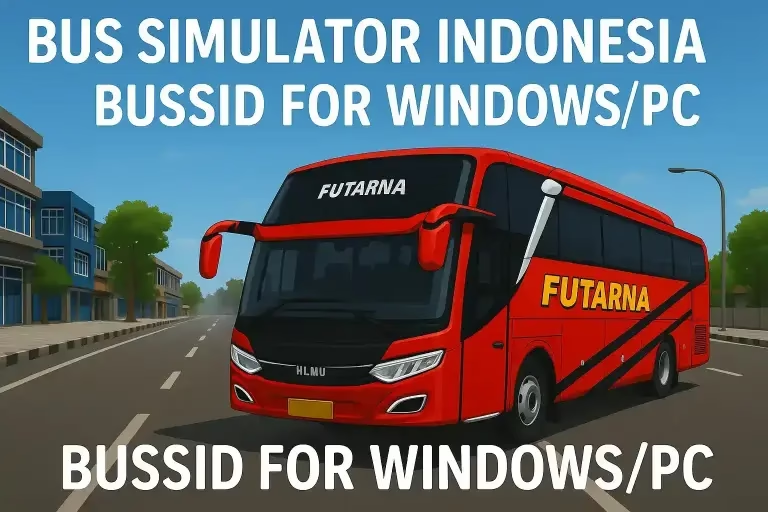
BUSSID MOD APK FOR WINDOWS Guide at a Glance
- Game: Bus Simulator Indonesia (BUSSID)
- PC platform: Windows 10 and Windows 11 are the practical focus of this guide.
- Method: Run the Android game through a compatible Android emulator.
- Popular emulator options: BlueStacks and MEmu Play.
- Controls: Keyboard, mouse and compatible game controllers can be mapped through the emulator.
- Download intent: The PC setup uses the Android APK rather than a separate native Windows installer.
BUSSID PC Guide Navigation
- Why play Bus Simulator Indonesia on PC?
- BUSSID PC and Windows system requirements
- How to download and install BUSSID on PC
- Install BUSSID with BlueStacks
- Install BUSSID with MEmu Play
- Keyboard, mouse and controller setup
- Improve BUSSID PC performance
- Common Windows and emulator problems
- Pros and cons of playing BUSSID on PC
- BUSSID PC FAQ
Why Play Bus Simulator Indonesia on PC?
Playing Bus Simulator Indonesia on PC can make long driving sessions more comfortable because you are using a larger display and can map controls to a physical keyboard or compatible game controller. A desktop or laptop can also provide more consistent power than a phone, although actual performance depends on the PC hardware, emulator settings, background applications and the BUSSID build you install.
- Larger display: dashboards, traffic, routes and scenery are easier to see.
- Keyboard controls: steering, camera and other actions can be mapped to physical keys.
- Controller support: a compatible gamepad can provide a more natural driving setup.
- Long sessions: playing on a desktop avoids relying on phone battery life.
- Multitasking: Windows makes it easier to switch between BUSSID and other desktop tasks.
These are advantages of the PC setup rather than guarantees of higher FPS. An Android emulator adds CPU, memory and graphics overhead, so a powerful phone can sometimes outperform a weak Windows laptop.
BUSSID PC System Requirements
The original Windows page listed Windows 7, 8 and 10+, 4GB RAM and 1GB free disk space. Those figures are best treated as a basic starting point, not a promise of smooth performance, because the Android emulator itself also consumes system resources. For a modern setup, Windows 10 or Windows 11 with additional RAM and storage headroom is the more practical target.
| Component | Basic starting point | More comfortable target |
|---|---|---|
| Operating system | Windows 7/8/10+ | Windows 10 or Windows 11 |
| RAM | 4GB | 8GB or more |
| Free storage | At least 1GB for the game file alone | 10GB or more available for the emulator, game and temporary files |
| Processor | Compatible modern CPU | Multi-core CPU with virtualization support |
| Graphics | Emulator-compatible graphics | Updated graphics drivers and enough GPU resources for the selected settings |
Important: emulator requirements change over time. Before installing BlueStacks, MEmu Play or another emulator, check the emulator’s current hardware and operating-system requirements and compare them with your PC.
How to Download Bus Simulator Indonesia For Windows
If you are searching for BUSSID MOD APK FOR WINDOWS, download game Bus Simulator Indonesia PC, or download BUSSID PC, the key point is that the emulator method uses the Android version of the game. You download the BUSSID APK and use the emulator to run it on Windows.
- Download a compatible Android emulator for Windows from its official source.
- Install the emulator and complete its initial setup.
- Obtain the BUSSID APK you intend to use.
- Open the emulator and install the APK using drag-and-drop or its APK installer.
- Launch BUSSID and configure keyboard, mouse or controller controls.
- Start with moderate graphics settings and increase them only if your hardware remains stable.
Site navigation: For the main BUSSID game and download information, use the BUSSID MOD APK homepage. If you need previous releases, use the BUSSID older versions archive. This Windows page is specifically for the PC platform.
How to Install BUSSID on PC with BlueStacks
BlueStacks is one practical way to run Android applications on Windows. The exact interface can change between releases, but the general BUSSID installation workflow is straightforward.
- Download and install BlueStacks from its official website.
- Open BlueStacks and complete the first-run setup.
- Use the emulator’s APK installation option, or drag the BUSSID APK into the emulator when supported.
- Wait for the APK installation to finish.
- Open BUSSID from the emulator home screen or app list.
- Configure keyboard or controller mappings before starting a long route.
- Adjust graphics and frame-rate settings according to your PC hardware.
For BlueStacks-specific behavior, always follow the current installation instructions supplied by BlueStacks because menu names and supported features can change between releases.
How to Install BUSSID on PC with MEmu Play
MEmu Play is another Android emulator option for Windows. It is useful for players who want keyboard mapping, gamepad support and an alternative to BlueStacks.
- Download MEmu Play from its official website.
- Install the emulator and complete its initial configuration.
- Open the APK installation tool or use the supported drag-and-drop method.
- Select your BUSSID APK file and allow the installation to complete.
- Launch BUSSID from the MEmu Play home screen.
- Map keyboard or controller inputs to the game’s driving controls.
- Test a short route before increasing graphics or performance settings.
If MEmu does not run smoothly on your machine, compare its current requirements with your hardware and consider another compatible Android emulator rather than assuming the BUSSID APK itself is the problem.
Keyboard, Mouse and Controller Controls on PC
One of the biggest differences between a phone and a Bus Simulator PC setup is input. Touch controls are replaced or supplemented by physical controls provided by the emulator.
- Keyboard: map steering, acceleration, braking, camera and frequently used actions to keys that are comfortable for your driving style.
- Mouse: useful for menus and some camera or interface actions, depending on emulator support.
- Game controller: a compatible controller can provide analog input and a more familiar driving feel.
- Camera controls: map camera actions to easy-to-reach keys so you do not have to interrupt driving.
After changing mappings, test steering, braking, acceleration and camera controls in a safe route. A control layout that feels good on a desktop can be different from the default touchscreen layout.
How to Improve BUSSID PC Performance
Performance depends on both BUSSID and the Android emulator. If BUSSID PC feels slow, stutters or drops frames, work through the emulator and Windows settings before assuming that you need a different APK.
- Close unnecessary background applications to free CPU and RAM.
- Enable hardware virtualization when it is supported and properly configured on your PC.
- Keep Windows and graphics drivers reasonably up to date.
- Start with moderate emulator resolution and graphics settings.
- Reduce frame-rate or graphics settings if the game becomes unstable.
- Avoid running several heavy applications or emulator instances at the same time on limited hardware.
- Keep sufficient free storage available for Windows, the emulator and temporary files.
- Test the game without extra community mods if you are diagnosing crashes or performance problems.
A bigger screen does not automatically mean better FPS. The goal is to find a stable balance between resolution, graphics quality, frame rate and the resources available on your computer.
BUSSID PC Troubleshooting
BUSSID APK will not install
Check that the APK is complete and compatible with the emulator. If another copy of BUSSID is installed and causing a package conflict, remove the conflicting installation and try again. If the emulator reports a specific error, use that error message to guide the diagnosis.
BUSSID keeps crashing
Crashes can come from limited RAM, high graphics settings, emulator compatibility problems, background applications or incompatible community files. Lower graphics settings first, close background tasks, and test the game without recently added mods.
BUSSID is lagging on my PC
Reduce emulator resolution and graphics quality, close unnecessary applications, check virtualization, and make sure the PC has enough available RAM. If the problem appears only after adding a mod, test the game without that mod.
Keyboard controls are not working
Open the emulator’s control-mapping tool and verify that the BUSSID actions are assigned to the intended keys. Make sure the emulator window has focus and that another Windows application is not capturing the same shortcut.
Controller is not detected
Reconnect the controller, confirm that Windows detects it, then check the emulator’s gamepad settings. Some emulator versions or controller modes may require additional mapping before BUSSID can receive the input.
BUSSID shows a black screen or fails to load
Start by reducing graphics settings and restarting the emulator. If the problem started after adding a custom vehicle, livery or other mod, temporarily remove that resource and test the base game again. Version mismatches can also cause individual resources to fail.
Pros and Cons of Playing BUSSID on PC
Pros
- Larger display
- Physical keyboard controls
- Compatible controller support
- No phone battery drain during desktop sessions
- More comfortable for long driving sessions
- Easy access to Windows multitasking
Cons
- Requires an Android emulator
- Emulator uses additional CPU and RAM
- Performance depends heavily on PC hardware
- Touchscreen controls need to be remapped
- Some emulator/game combinations may have compatibility issues
- Emulator setup takes longer than installing directly on Android
More BUSSID Guides
- BUSSID MOD APK homepage — main game and download information.
- BUSSID older versions — previous-release information.
- BUSSID Mods Hub — buses, trucks, cars, motorcycles, maps, liveries and other resources.
- BUSSID Controls & Buttons Guide — driving controls and camera/input help.
- How BUSSID Career Mode Works — career progression and gameplay.
- BUSSID Multiplayer / Mabar Guide — multiplayer information.
- BUSSID for iPhone/iOS — separate iPhone and iPad information.
- How to Install a BUSSID Mod — community mod installation.
BUSSID PC FAQ
Can I play Bus Simulator Indonesia on PC?
Yes. You can play the Android version of Bus Simulator Indonesia on a Windows PC by using a compatible Android emulator and installing the BUSSID APK inside it.
How do I download Bus Simulator Indonesia for PC?
Download the BUSSID APK from the source you trust, install an Android emulator on Windows, and then install the APK inside the emulator. The emulator is the compatibility layer used for the PC setup described on this page.
How do I download BUSSID PC?
For a BUSSID PC setup, download the Android APK and a compatible Windows Android emulator. The emulator allows the Android game to run on your computer.
Can I play BUSSID on Windows 10 and Windows 11?
Yes. Windows 10 and Windows 11 are the practical focus for a modern emulator-based BUSSID setup. Compatibility can vary by emulator version and PC hardware.
Can I play BUSSID on PC without BlueStacks?
Yes. MEmu Play and other compatible Android emulators can be alternatives. Compare their current requirements with your PC before choosing one.
Which emulator is best for BUSSID?
There is no single best emulator for every PC. BlueStacks is a straightforward starting option, while MEmu Play is another option with keyboard and gamepad features. The best choice depends on compatibility, hardware and the controls you prefer.
How much RAM do I need for BUSSID on PC?
4GB RAM can be a basic starting point on some setups, but 8GB or more is a more comfortable target because Windows and the Android emulator both need memory. The emulator’s current requirements should take priority.
Can I use a controller to play BUSSID on PC?
Yes, if your Android emulator detects the controller and provides gamepad mapping. Configure the buttons in the emulator before starting a route.
Why is BUSSID lagging on my PC?
Common causes include limited RAM or CPU resources, virtualization settings, high emulator graphics settings, background applications and incompatible mods. Lower the emulator settings first and test the game with fewer background processes.
Is there an official Windows version of BUSSID?
This page covers the Android version running through an emulator rather than a native Windows executable. Check current official game information separately if a native Windows release is announced.
Final Words
If you want the Bus Simulator Indonesia PC experience on a Windows 10 or Windows 11 computer, an Android emulator is the practical route covered here. Install a compatible emulator, install the BUSSID APK, configure your controls, and adjust the emulator settings to match your hardware.
For the main game download and current BUSSID information, return to the BUSSID MOD APK homepage. For older releases, use the older versions archive. For custom vehicles and other resources, browse the BUSSID Mods Hub.