
Master Every Button and Control in Bus Simulator Indonesia Mod APK
When I first downloaded Bus Simulator Indonesia three years ago, I spent 20 minutes just staring at the screen. Buttons everywhere. A steering wheel, gear shift, mysterious icons I’d never seen in any mobile game. My first attempt at driving? I accidentally opened the luggage compartment instead of the door, honked when trying to brake, and somehow ended up stuck in reverse on a busy Jakarta street.
Sound familiar? You’re not alone. After helping over 50 players master BUSSID controls through our community Discord, I’ve learned the exact struggles beginners face. This isn’t another generic “tap here, tap there” guide. This is everything I wish someone had told me on day one, including the hidden controls most players discover by accident months later.
Why BUSSID Controls Feel Overwhelming at First
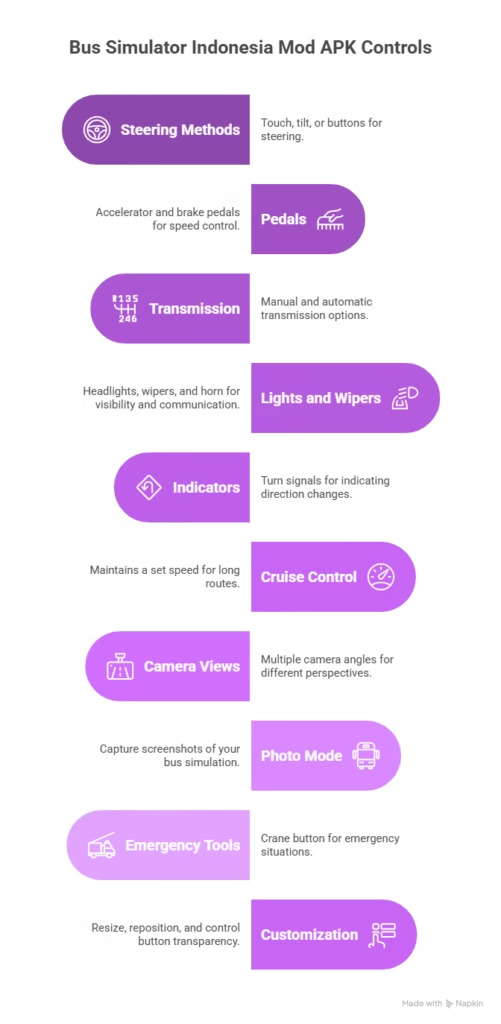
Bus Simulator Indonesia packs 25+ interactive buttons into your screen, simulating a real bus dashboard. While games like Asphalt or Need for Speed give you gas and brake, BUSSID gives you everything: gear shifting, door controls, three camera angles, wipers, dippers, cruise control, and even a photo mode.
The mod APK version adds even more features: unlimited money means you can unlock every bus immediately, testing controls across different vehicle types. But here’s the catch: more buses mean more control variations. The Hino bus dashboard looks nothing like a Mercedes Sprinter.
Common Beginner Mistakes
- Players use automatic transmission for 6 months before realizing manual exists
- They never discover the crane button until their bus gets stuck on a mountain road
- Most ignore cruise control, making long routes exhausting
- The photo mode button gets pressed accidentally during tight turns
- Nobody reads what the dipper button actually does
Understanding Your BUSSID Dashboard: Core Controls
Steering Wheel: Your Primary Control System
BUSSID offers three steering methods, and choosing the wrong one ruins your experience. Touch Steering works best on tablets. Drag your finger across a virtual wheel. Sensitivity matters here. Too sensitive? You’ll swerve into traffic. Too stiff? You can’t make tight turns in Surabaya’s narrow streets.
I recommend 60% sensitivity for beginners. Go to Settings → Controls → Steering Sensitivity. Test it in Free Mode before attempting career missions.
Tilt Steering uses your phone’s gyroscope. Sounds cool until you’re lying in bed trying to play. Every small movement translates to steering input. Great for realistic gameplay, terrible for casual couch sessions.
Button Steering gives you left/right arrows. Simple, but lacks the smooth control real driving needs. Use it only as a last resort on older devices where touch response lags.
Accelerator and Brake: Speed Management Basics
Unlike racing games where you hold gas constantly, BUSSID requires finesse. Real buses don’t go from 0 to 80 km/h instantly. The Accelerator Pedal sits bottom-right by default. Tap and hold to gain speed gradually. Stomping it fully triggers wheel spin in mod buses with 1000+ horsepower. Smooth acceleration keeps passengers happy and prevents engine damage.
The Brake Pedal needs anticipation. Buses require 3x the stopping distance of cars. I’ve watched beginners slam brakes 5 meters before a red light, throwing passengers forward and failing missions. Pro tip: Start braking 50 meters early. Light pressure first, harder as you approach the stop. Your passenger comfort score depends on it.
Handbrake appears only on certain buses. It’s that small icon near the gear shift. Use it when parking on hills. Parking without the handbrake causes your bus to roll away while passengers board.
Hidden Controls Most Players Never Discover
Gear Shift: Manual vs Automatic Transmission
This decision changes everything about how you play BUSSID. Automatic Transmission means the game shifts gears for you. Perfect for beginners focusing on route learning and passenger management. Zero stress, but you lose control over engine power in hills.
Manual Transmission means you control every gear change. When to use it? Always, once you understand the basics. Manual gives you:
- Engine braking on downhills without overheating brakes
- Better fuel efficiency on long routes (yes, fuel matters in career mode)
- Faster acceleration when timing shifts perfectly
- Realistic simulation experience actual bus drivers appreciate
How to shift properly: Listen to engine RPM. That growling sound means shift up. Struggling uphill? Drop to 2nd or 3rd gear for more torque. Approaching stops? Downshift gradually instead of just braking.
If you want to enhance your driving experience even further, check out our guide on downloading BUSSID maps for more realistic Indonesian routes.
Essential Secondary Controls Every Player Needs
Horn: More Than Just Noise
BUSSID includes three horn sounds, including the famous “Om Telolet Om!” (Uncle, honk please!). This Indonesian cultural reference became a viral meme in 2016 when kids would ask bus drivers to honk their musical horns.
When to actually use your horn:
- Warning stopped vehicles you’re passing
- Alerting traffic before tight turns
- Creating authentic atmosphere in multiplayer convoys
- Making kids happy at bus stops (yes, passengers react to it)
One warning: Excessive honking decreases your mission score. The game tracks horn abuse.
Headlights, Taillights, and Hazard Lights
Night driving without lights fails you instantly in mod APK missions. Here’s what each does:
Low Beam: Standard headlights for city driving. Use them after 6 PM in-game time.
High Beam: Brighter lights for rural highways. Blind oncoming traffic if used incorrectly. Switch to low beam when passing other vehicles.
Hazard Lights: Flash all indicators simultaneously. Use when your bus breaks down mid-route, you’re driving unusually slow uphill, emergency stops on highways, or waiting at red lights on narrow roads.
I once failed a mission because I forgot headlights. Drove perfectly otherwise. The game auto-fails you after 2 minutes of night driving without lights.
Windshield Wipers: Rain Survival Tool
Indonesia gets heavy rain. When it starts pouring in-game, your visibility drops to near zero without wipers. Wiper Settings include slow mode for light drizzle and fast mode for heavy downpour.
Toggle them with the wiper icon (looks like a windshield with lines). I’ve seen players squinting at rain-covered screens for entire routes instead of just activating wipers. Don’t be that person.
Door Controls: Passenger Management
Two door icons control passenger boarding. Front Door is the primary entrance where passengers board and pay fares. Rear Door is the exit door (some buses have middle doors too).
Critical timing rule: Open doors only at designated stops. The game detects proper stop locations. Opening doors randomly on highways costs you massive points.
The proper sequence:
- Pull up completely at stop (game shows “Stop” indicator)
- Open front door
- Wait for passenger boarding animation
- Close all doors
- Check mirrors
- Signal before pulling out
Rushing this process fails you. I’ve watched speed-runners lose perfect scores because they closed doors 2 seconds early.
Advanced Controls That Separate Pros from Beginners
Cruise Control: The Long-Route Lifesaver
Most players discover this button 100+ hours into gameplay. It’s criminal how under-used it is. What it does: Maintains constant speed without holding the accelerator.
When to use it: Long highway sections (Jakarta to Surabaya), when your thumb gets tired from holding gas, maintaining exact speeds in speed limit zones, reducing finger strain during marathon sessions.
How to activate: Set your desired speed, then tap the cruise control icon (speedometer with a lock). The bus maintains that speed until you brake or tap it again. Game-changer for the 2-hour Sumatra route.
Photo Mode: Capture Your Journey
That camera icon isn’t decorative. BUSSID’s photo mode lets you pause gameplay and position a free-floating camera, capture scenic Indonesia landscapes, take bus selfies for social media, and create content for YouTube/TikTok.
Controls in photo mode: Swipe to rotate camera, pinch to zoom, drag to move position, tap screenshot button to save.
I’ve seen incredible photos: buses at sunset on Bali’s coastal roads, nighttime shots in Jakarta’s neon districts, mountain passes in West Java. The game’s graphics look far better in photo mode than during regular gameplay. Want to make your bus look even better? Check out our free BUSSID skins collection .
Camera Angles: Finding Your Perfect View
Three camera options transform how you play. Interior View (Cockpit) shows the full dashboard. Most realistic but limited road visibility. Use this for screenshot aesthetics or when you want pure immersion.
Exterior Chase View has the camera follow behind your bus. Best for beginners. You see traffic ahead, can judge lane positioning, and spot obstacles early.
Far View gives a wide-angle shot showing more road context. Perfect for navigating complex intersections or backing into tight parking spots.
My recommendation: Start with chase view until you master routes, then graduate to interior for realism. Swap cameras mid-drive by tapping the camera icon. Some missions specify required camera angles.
Dipper Button: Traffic Communication
This small button flashes your high beams rapidly. Real bus drivers use it to signal you’re passing slower vehicles, warn oncoming traffic of hazards, say “thank you” to drivers who let you merge, and alert distracted drivers at intersections.
In BUSSID, use dippers before overtaking on two-lane roads, approaching blind curves, entering roundabouts, and warning stopped traffic ahead. It’s the difference between realistic simulation and arcade game behavior.
Indicator/Turn Signals: Required Safety Feature
Two arrow buttons control your blinkers. The game deducts major points if you turn without signaling.
Proper signaling sequence:
- Activate signal 5 seconds before turning
- Check mirrors (game tracks this)
- Slow gradually
- Complete turn
- Signal auto-cancels
I failed my first three missions because I treated signals like a racing game. They’re mandatory in BUSSID career mode.
Mastering Controls on Different Devices
Crane Button: Emergency Rescue
Stuck on uneven terrain? The crane button has two functions. Option 1: Transports your bus to nearest road. Option 2: Teleports directly to garage.
When to use it: Your bus flips on a mountain road, you’re stuck between two vehicles, wheels sink into grass/mud, or mission glitches trap you.
Some players went months without knowing this existed. They’d restart entire missions instead.
Extra Light Buttons: Aesthetic Customization
In mod APK, you can add decorative LED lights to your bus exterior. Access these in the garage menu before missions. Light options include roof mounted colored strips, undercarriage glow effects, custom headlight colors, and interior cabin lighting. These don’t affect gameplay but make your bus stand out in multiplayer convoys.
Radio and Music Player: Journey Entertainment
Toggle radio on/off to play in-game music stations. Some buses include this feature by default. Better option: The music player lets you play your own phone’s music while driving. Settings → Audio → Enable External Music. I drive with Indonesian music playing for full immersion. Dangdut music plus BUSSID equals authentic experience.
Customizing Controls for Your Play Style
BUSSID lets you modify almost everything in Settings → Controls Menu:
- Button size scaling (10% to 200%)
- Button position (drag anywhere on screen)
- Button transparency (50% to 100%)
- Control response sensitivity
- Force feedback vibration strength
My recommended custom layout:
- Move accelerator/brake 15% closer to screen center (easier thumb reach)
- Enlarge gear shift button by 30% (prevents mis-taps)
- Set steering sensitivity to 65% (responsive without oversensitivity)
- Place horn button away from gear shift (prevent accidental honks)
- Increase turn signal size by 20% (critical for mission scoring)
Save custom layouts per bus type. Your city bus layout won’t work for long-distance coaches. If you’re playing on a bigger screen, also check out our guide on BUSSID for Windows and PC.
Common Control Problems and Fixes
Issue: Steering feels too sensitive
Fix: Settings → Steering Sensitivity → Reduce to 50-60%
Issue: Can’t shift gears in manual mode
Fix: You’re likely in automatic. Settings → Transmission → Manual
Issue: Doors won’t open at stops
Fix: You haven’t pulled up completely at the designated stop marker
Issue: Cruise control disables randomly
Fix: Any brake input cancels it. Also check fuel (empty tanks disable cruise)
Issue: Buttons disappear during gameplay
Fix: HUD auto-hide is enabled. Tap screen center to restore buttons
Issue: External steering wheel controller not working
Fix: BUSSID doesn’t support external controllers officially. Use button remapping apps like Octopus
Issue: Touch response lags
Fix: Close background apps. BUSSID requires 2GB+ free RAM
For more troubleshooting tips and advanced gameplay strategies, you can also explore BUSSID community on Reddit where thousands of players share their solutions.
Smartphones (under 6 inches): Use button steering or single-thumb touch control. Screen size limits complex finger movements.
Tablets (7+ inches): Ideal for full touch steering. Larger screens reduce accidental button presses.
Emulators (PC via BlueStacks): Map keyboard keys to each control. W/S for gas/brake, A/D for steering, number keys for gears.
I play on both phone and tablet. Tablet wins for long sessions, but phone works fine for quick 15-minute routes. If you’re interested in mobile gaming, check out our BUSSID older versions guide for different device compatibility options.
The Control Mastery Roadmap
Week 1: Master steering, gas, brake in automatic transmission. Use chase camera.
Week 2: Add turn signals, mirrors, headlights. Practice proper stop procedures.
Week 3: Switch to manual transmission. Learn gear timing.
Week 4: Add cruise control, camera switching, photo mode.
Month 2: Master all advanced controls, customize your perfect layout.
Don’t rush it. I see players trying manual transmission on day one, failing missions, then quitting in frustration.
BUSSID Controls FAQS
Touch steering is best for beginners, especially on tablets. Set steering sensitivity to around 60% in Settings → Controls → Steering Sensitivity for smooth control. Avoid tilt steering until you gain experience, as small device movements can cause swerving.
Start with automatic transmission for the first 2–3 weeks. Once comfortable, switch to manual transmission for better control, engine braking on downhills, improved fuel efficiency, and faster acceleration when shifting correctly.
Go to Settings → Controls → Steering Sensitivity. Reduce to 50–60% if steering feels too sensitive, or increase to 65–70% if turns feel stiff. Always test changes in Free Mode before missions.
The crane button is an emergency rescue feature. It can move your bus back to the nearest road or teleport it directly to the garage when stuck, flipped, or trapped in terrain.
Accelerate to your desired speed, then tap the cruise control icon. The bus will maintain speed automatically until you brake. It’s ideal for long highway routes and reduces finger fatigue.
Your bus must be fully stopped at the designated stop marker. Wait until the “Stop” indicator appears, then open the doors. Opening doors outside stops causes major mission penalties.
BUSSID does not officially support steering wheel controllers. However, button-mapping apps can be used. On PC emulators like BlueStacks, keyboard controls offer better precision than mobile.
Low beam headlights are for city driving and must be used after 6 PM in-game. High beams are for dark highways without traffic. Driving at night without lights can fail missions automatically.
Open Settings → Controls to resize buttons, drag them anywhere, adjust transparency, sensitivity, and vibration. You can save different layouts for different bus types.
BUSSID simulates realistic bus driving. Turning without signals causes heavy point deductions. Activate signals before turning, slow properly, complete the turn, and let signals auto-cancel.
Final Thoughts
BUSSID’s complex controls make it the most realistic mobile bus simulation available. That complexity intimidates beginners but rewards players who invest time learning properly.
The difference between a struggling player and a master? Understanding what each button does and when to use it. You don’t need to use every control every second. You need to know which tools solve which problems.
Start with the basics. Add one new control per week. Within a month, you’ll drive circles around players with 200+ hours who never learned proper technique.
Now grab your phone, open BUSSID, and actually try these controls instead of just reading about them. Theory doesn’t make you good. Practice does.
What control gave you the most trouble when starting? Drop a comment below. I read and respond to every question.